1099 Report #
This report is intended for independent contractors and owner-operators, such as truck drivers and freight agents, who receive an IRS Form 1099-NEC for their services. These workers are classified as self-employed business owners rather than employees, which means they are responsible for managing their own taxes and business expenses. The 1099 form is used exclusively for independent contractors and reports only the worker’s gross income, with no taxes withheld. As a result, recipients of the 1099 form must file and pay their own taxes accordingly.
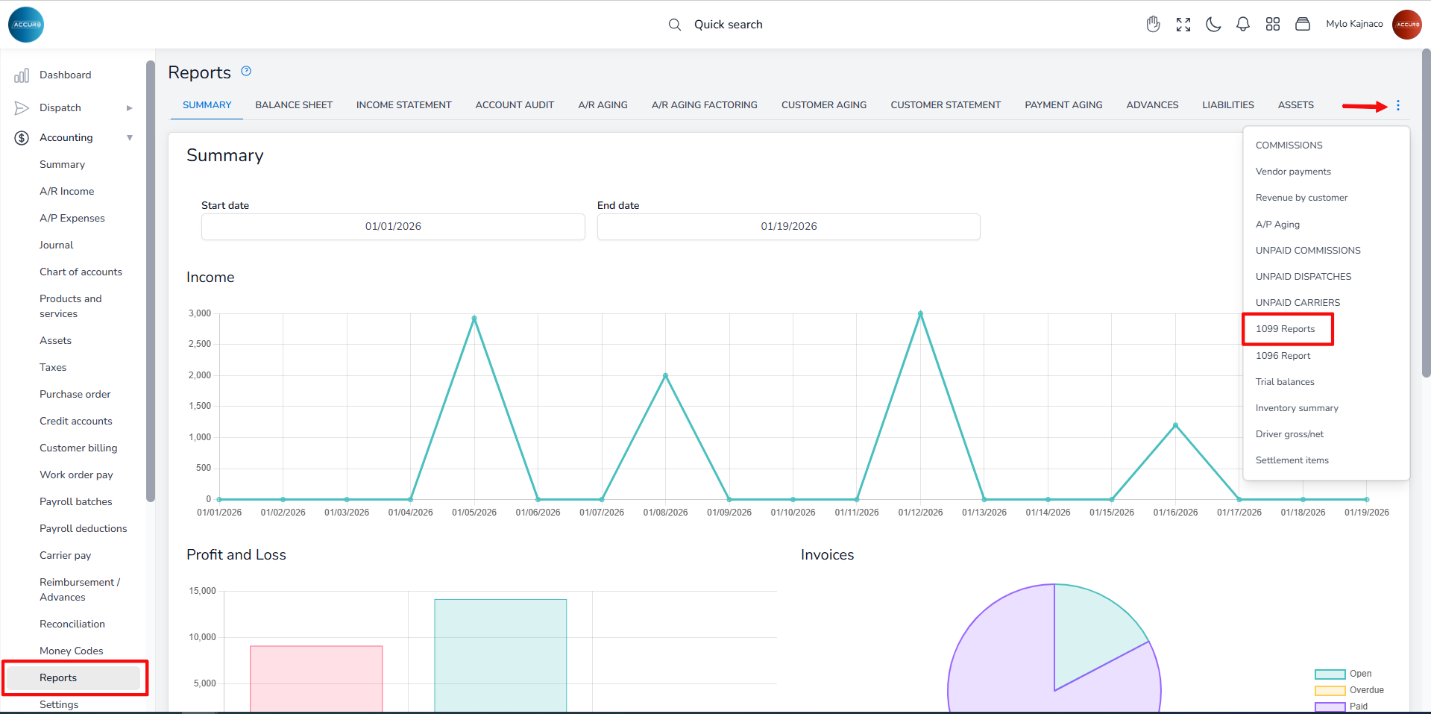
To access these reports in the ACCUR8 system, navigate to the Accounting section on the left sidebar and select the Reports option. On this page, click the 1099 tab (if the screen is smaller, click the three dots at the top-right corner to view more tab options).
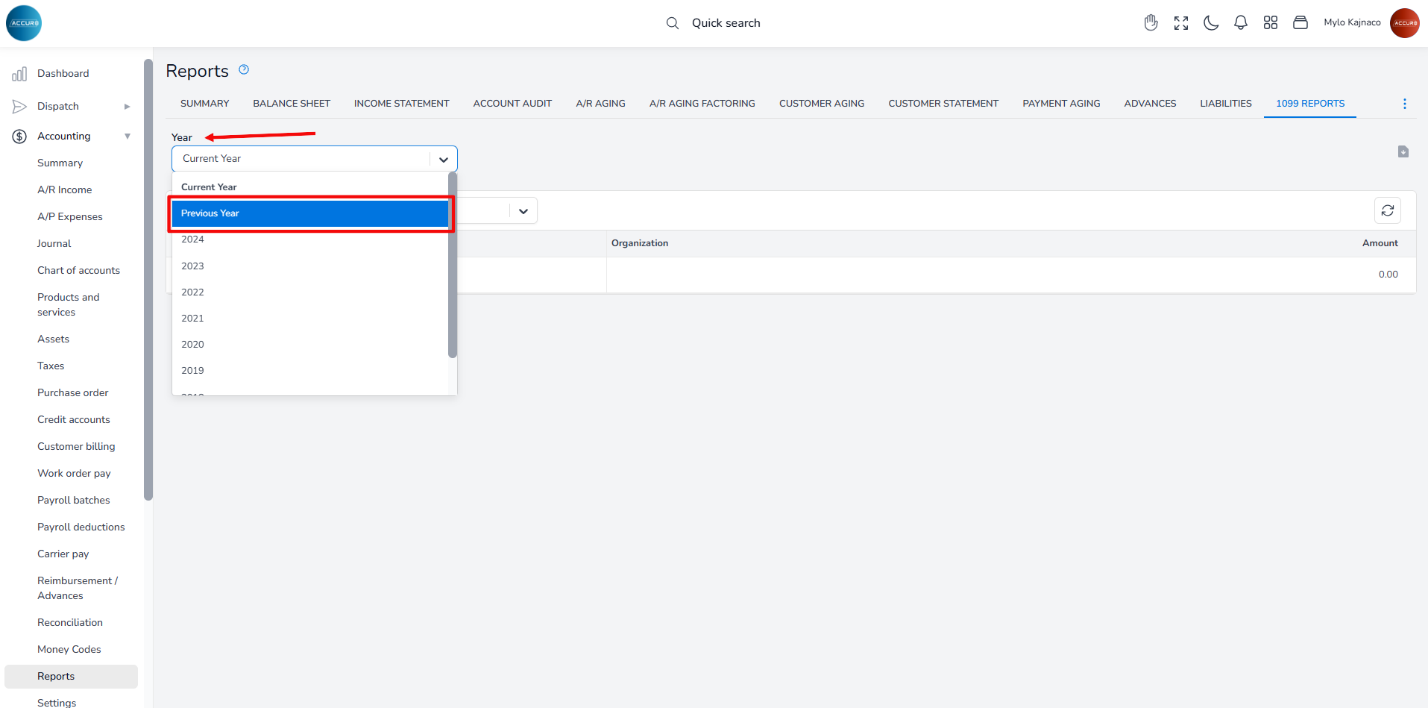
Next, select the Previous Year option from the Year drop-down menu to view all reports recorded in the system.
How it works #
The system takes the total gross value from all drivers’ payroll batches (or, if payment is set per truck, from all Pay to Trucks entries), along with all manually entered expenses and bills that are not classified as payroll expenses and are posted to other expense accounts (on the A/P Expenses list, a specific icon identifies payroll expense).
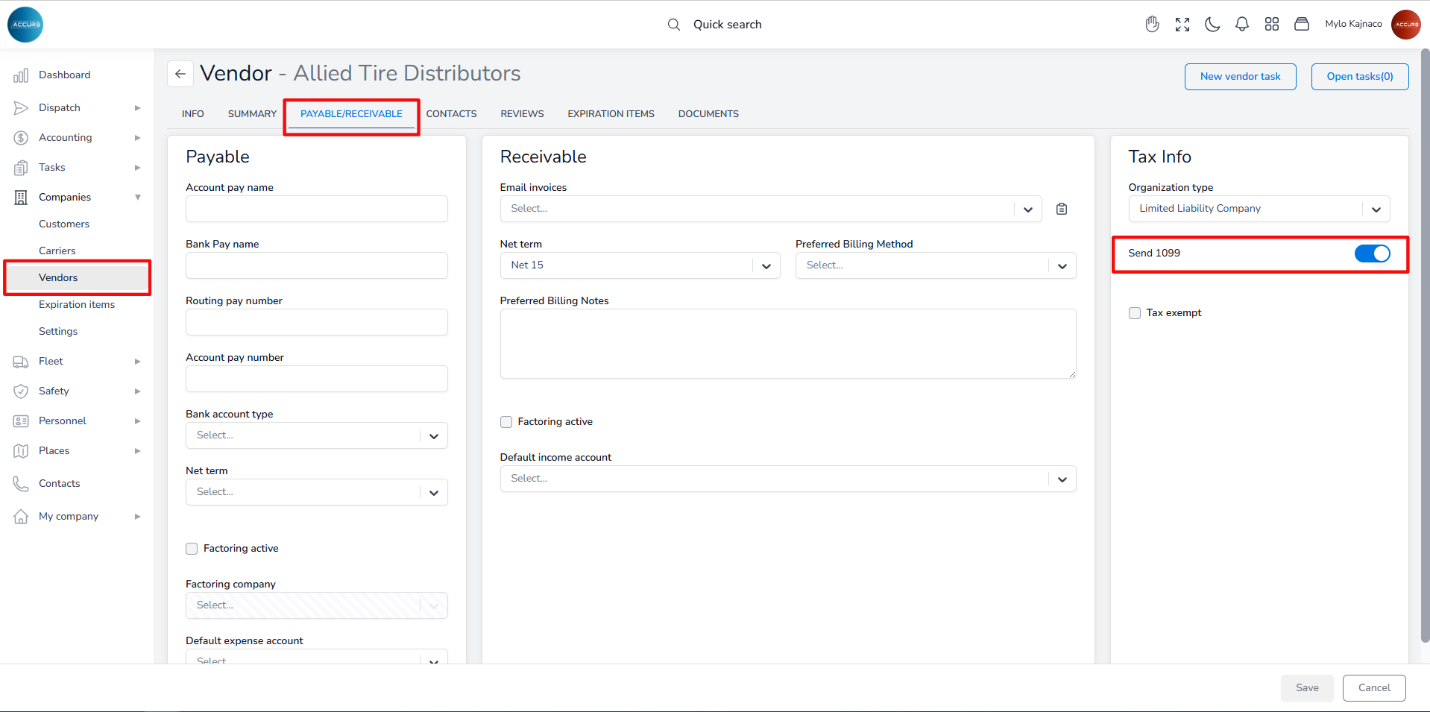
A driver will be excluded from the report if the Send 1099 option is not enabled in their payroll setup, and the same applies if the company does not have the same option enabled in the Payable/Receivable tab.
For any entry to appear on the report, either contact or organization must have the 1099 option marked in their profile.
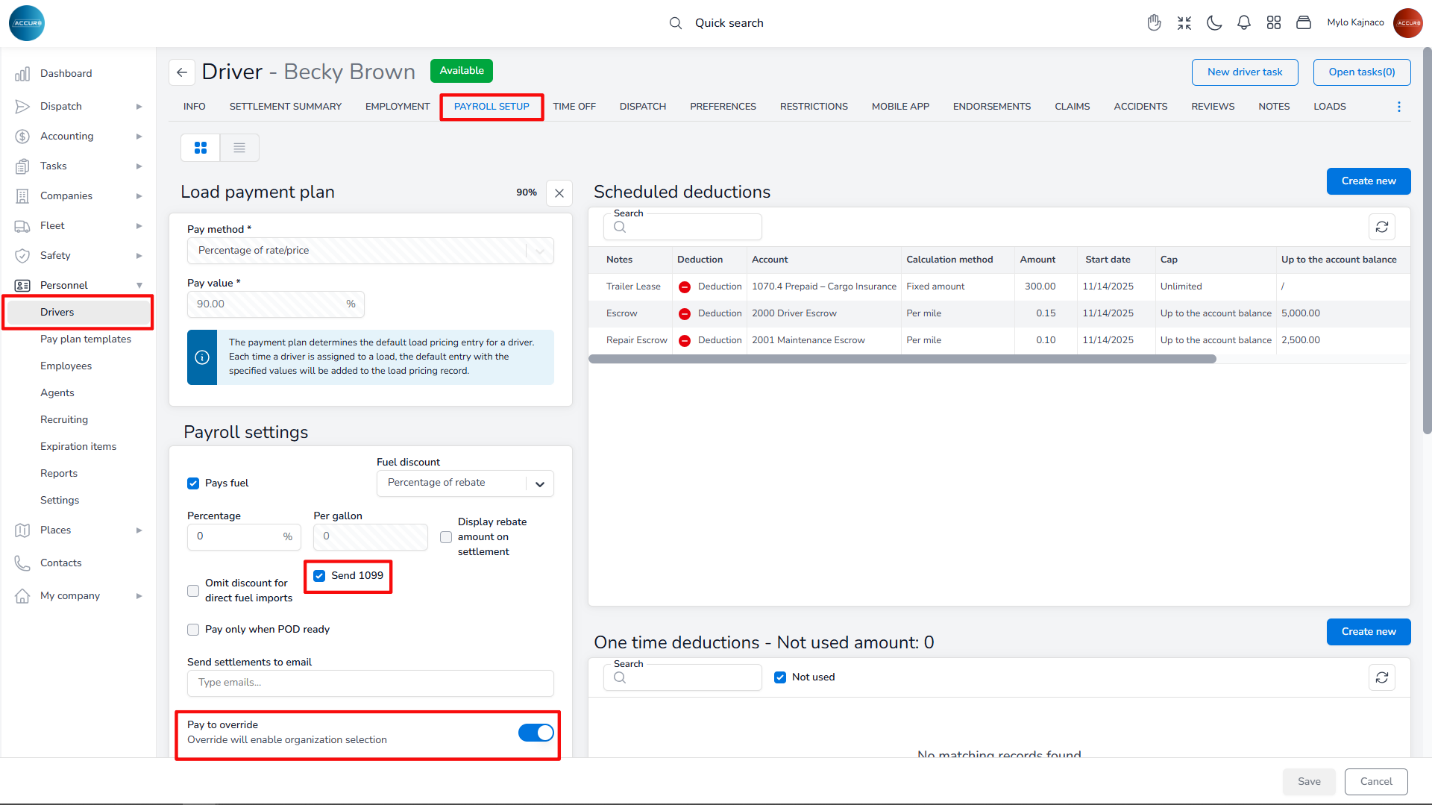
For drivers, you need to mark the Send 1099 option on their Payroll setup tab, under the Payroll settings section. If the company is responsible for paying the driver’s salary, you need to toggle the Pay to override button; this value will be reflected in the report.
In this case, the Send 1099 option must be enabled on the driver’s vendor profile (on the Payable/Receivable tab, under the Tax Info section).
Where to check the values #
To check values, go to the driver’s or truck’s Settlement summary tab, where you will find a list of all payroll batches, including the gross amounts and information on whether there are payments made to an organization.
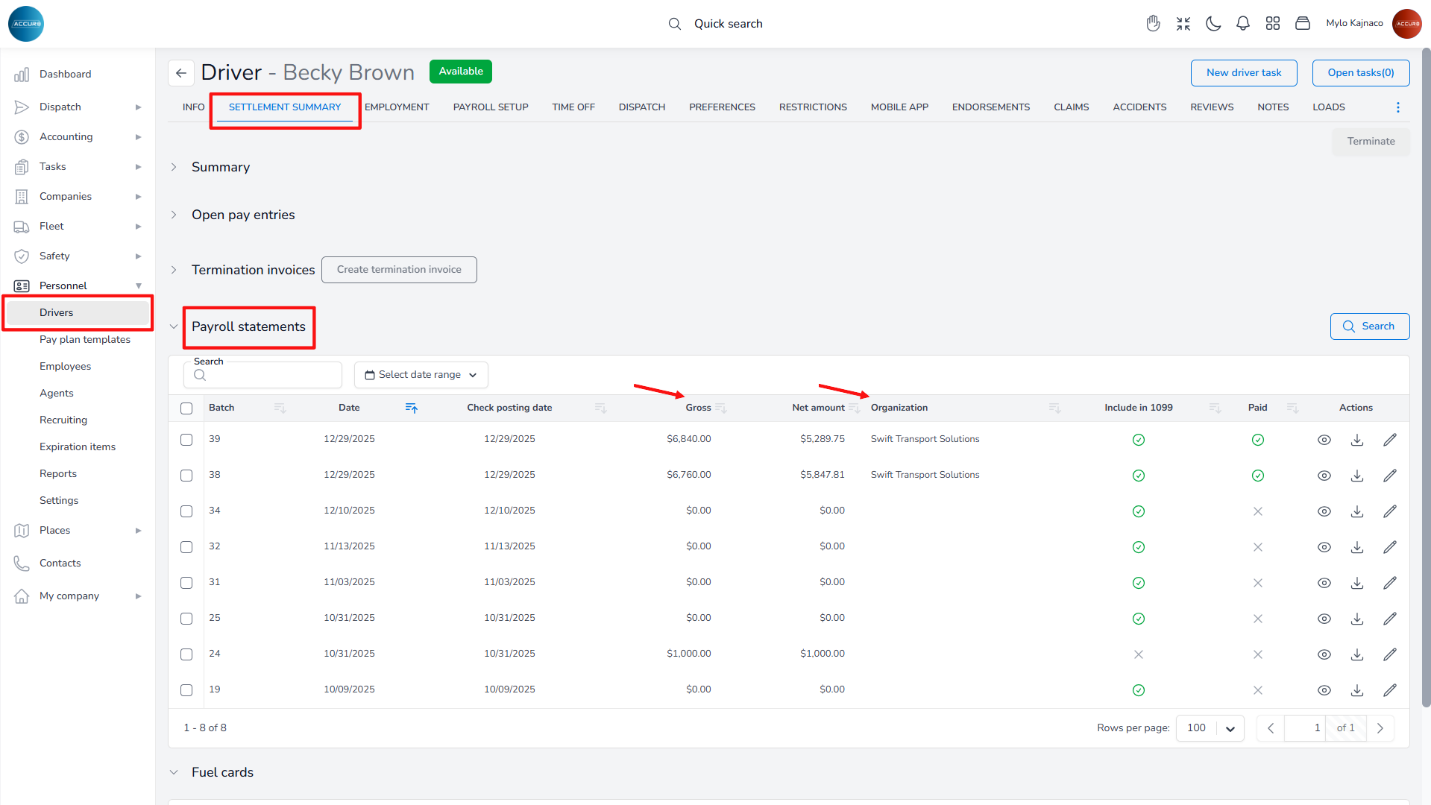
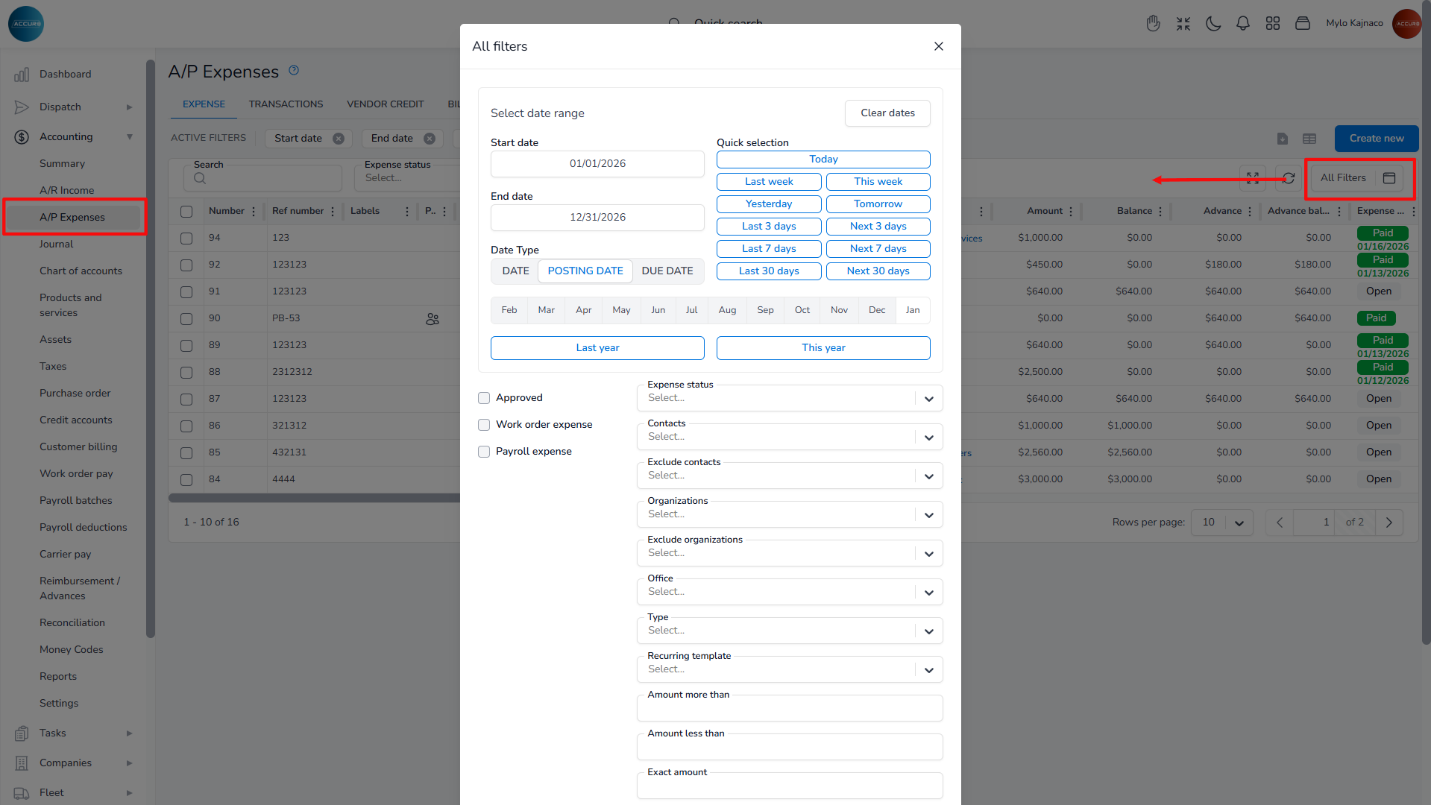
On the A/P Expenses page, you can use the All-Filters options to filter the list by contact, organization, specific year, or posting date. Additionally, you can exclude all items marked as payroll, as these have already been processed through the payroll batches mentioned earlier.