
Skip to content
ACCUR8 Platform Knowledge Base

How Things Work

  • How importing transponders works
  • How EFS Integration works
  • How importing and creating fuel entries work
  • How load history works
  • How loaded and empty mileage calculation works
  • How driver’s status management works
  • How Load Mileage Recalculation Works
  • How driver e-mail usage works
  • How the Command Center filtering works
  • How to share a load with a customer
  • How to archive invoiced and not invoiced loads
  • How the credit limit works
  • Inventory Management in ACCUR8 TMS
  • How filters work on the main pages
  • How date on loads rules work in ACCUR8 TMS

FAQ

  • Intro – Basic Carrier
  • Intro – Basic Brokerage
  • Adding System Users
  • Dashboard Basics
  • Document Management Guide
  • E-mail Settings
  • Email Configuration for Sending Emails from Personal Addresses from the ACCUR8 TMS

Dispatch Carrier

  • Load Planning
  • Intro – Basic Carrier
  • Tailgate Load Management
  • Load TONU
  • Load Drop
  • Load assets warning
  • Document types
  • Document Management
  • Changing assets by using “Assets Drop and hook” (Optional)
  • Stop Management in Dispatched Status
  • Stop completion and load asset statuses’ lifecycle (carrier mode only)
  • Load pricing operations for Carriers
  • How to progress load status from start to delivered (Carrier mode)
  • Load Creation Carrier Mode

Dispatch Broker

  • Intro – Basic Brokerage
  • Load pricing operations in Brokerage Mode
  • Load Creation Brokerage Mode
  • How to progress load status from start to delivered (Broker mode)
  • Load TONU (Broker)
  • Document types (Broker)
  • Document Management (Broker)

Accounting

  • Correcting and Deleting Fuel Bills
  • 1099 Report
  • IFTA Report
  • Payroll management
  • Invoicing and factoring
  • Truck payroll setup – accounting
  • Driver payroll setup – accounting
  • Customer load billing manual – accounting

Mobile App

  • Driver Mobile app
  • Driver Mobile app – Drivers’ manual

Safety

  • Creating and Configuring Driver, Truck, Trailer, and Dispatch Unit Setup
  • Freight Claims & Accidents Management
View Categories

Correcting and Deleting Fuel Bills

2 min read

Correcting and Deleting Fuel Bills #

VIEW GUIDE IN FULL SCREEN

If a fuel bill has already been imported and a driver’s fuel discount, payroll setup, or charge-to setting is added or modified afterward, the existing bill will not update automatically. To correct this, manually update the corresponding entries in both the bill and the fuel list. This ensures the changes are applied immediately, without waiting for the next fuel import.

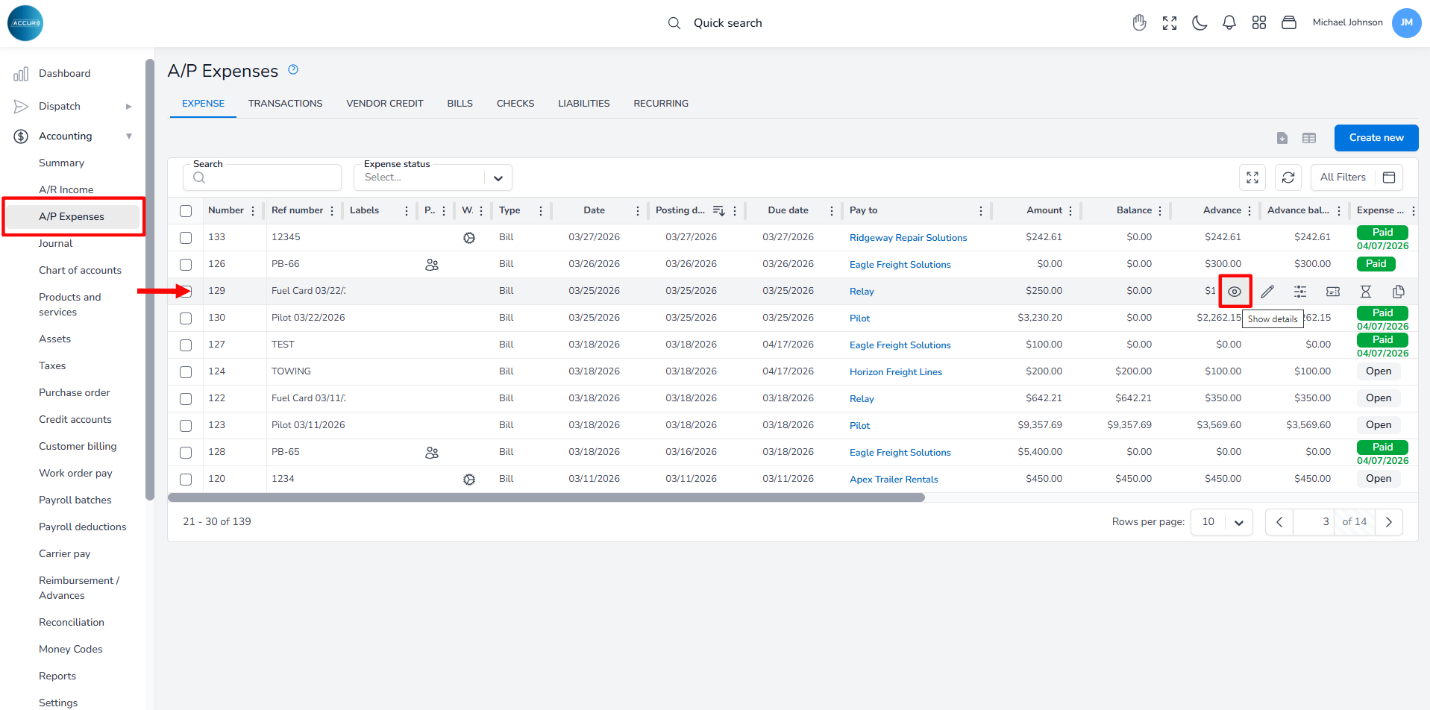
To do this, go to the A/P Expense page and locate the bill in the list; then, hover over it and click the Show Details button.
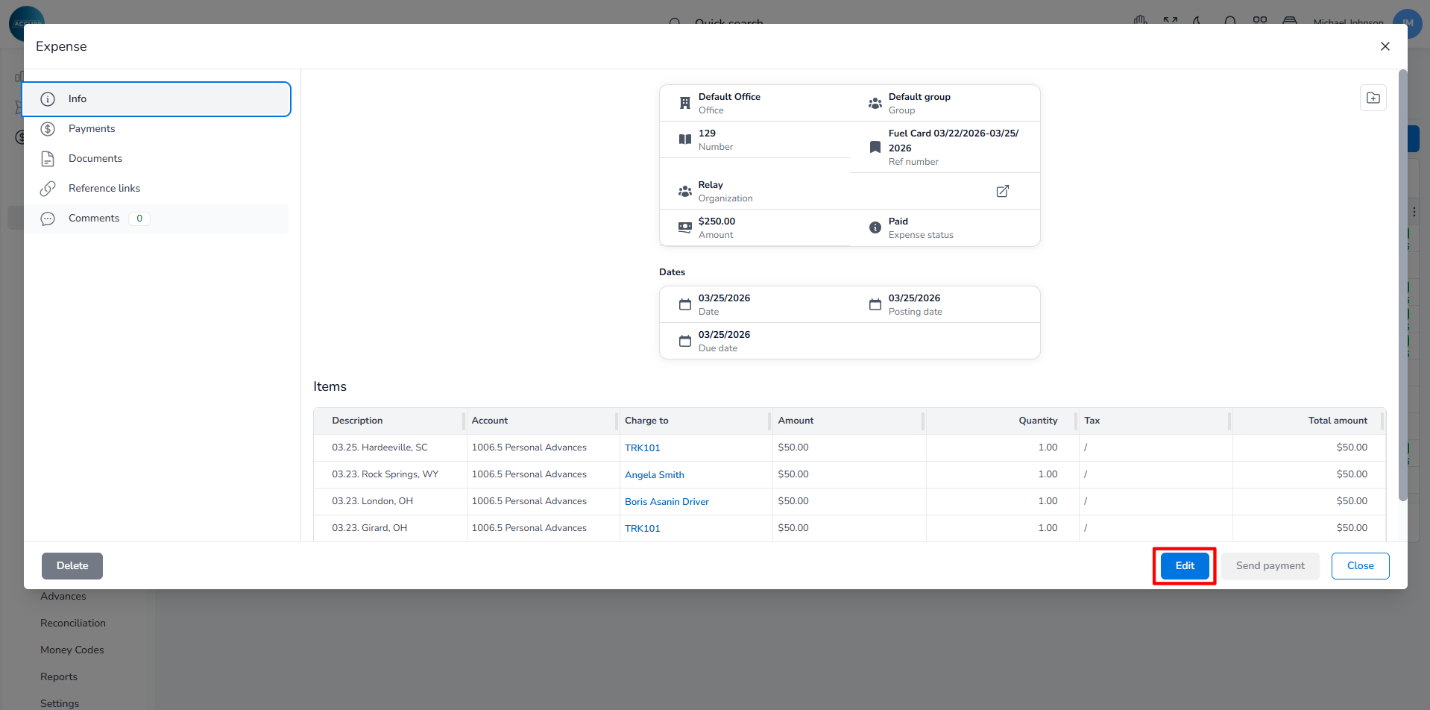
In a pop-up window, click the Edit button at the bottom right of the page.
Locate the bill in the Items list.
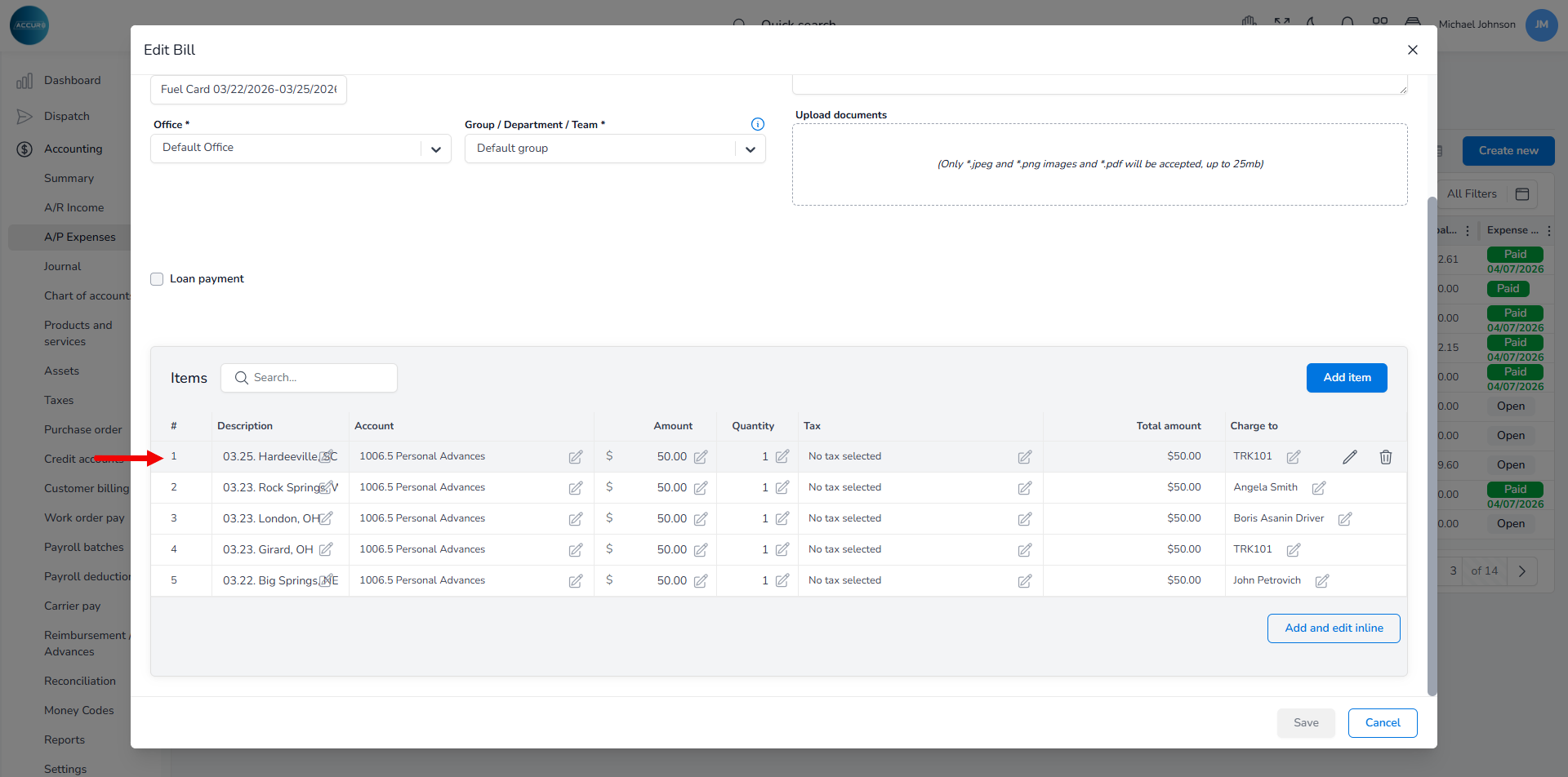
The list is divided into several columns. In each column, you can make changes by clicking the edit button.

If you need to change an account from a company fuel expense account to the appropriate driver charge account (e.g., Fuel Advances or the account your company uses for driver fuel charges), click the Account column and select the correct one from the drop-down menu. This prevents the amount from being posted as a company expense when it should be charged to the driver.
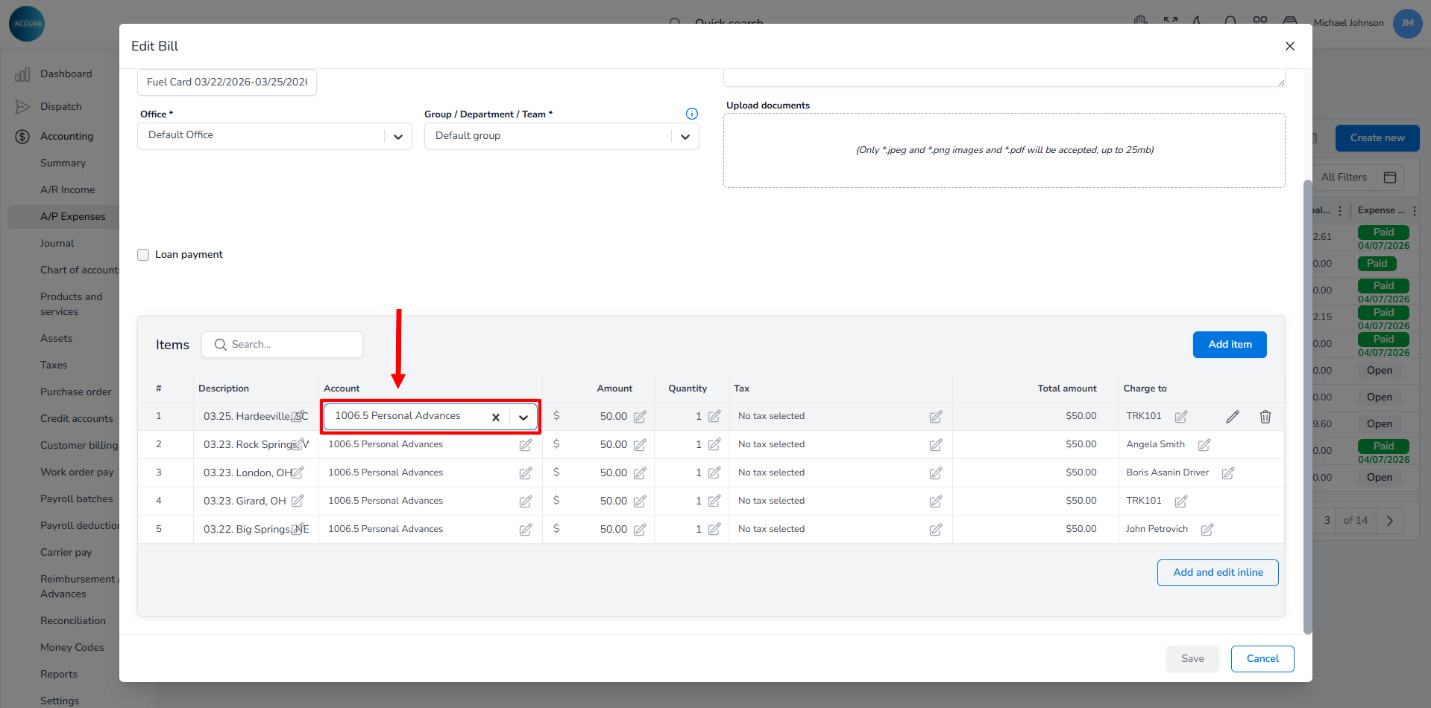
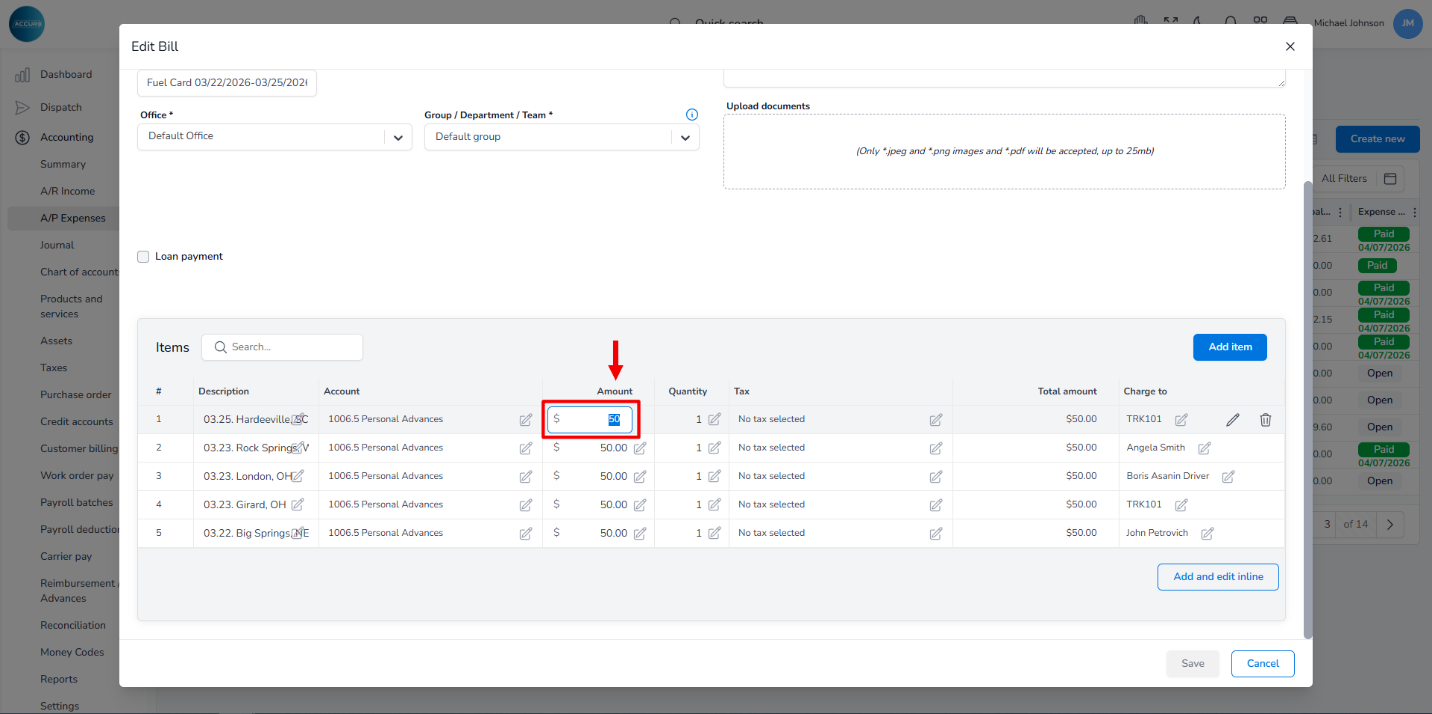
If the discount needs to be applied manually for this import, adjust it in the Amount column based on your company’s calculation. The Total amount column will automatically reflect this update.
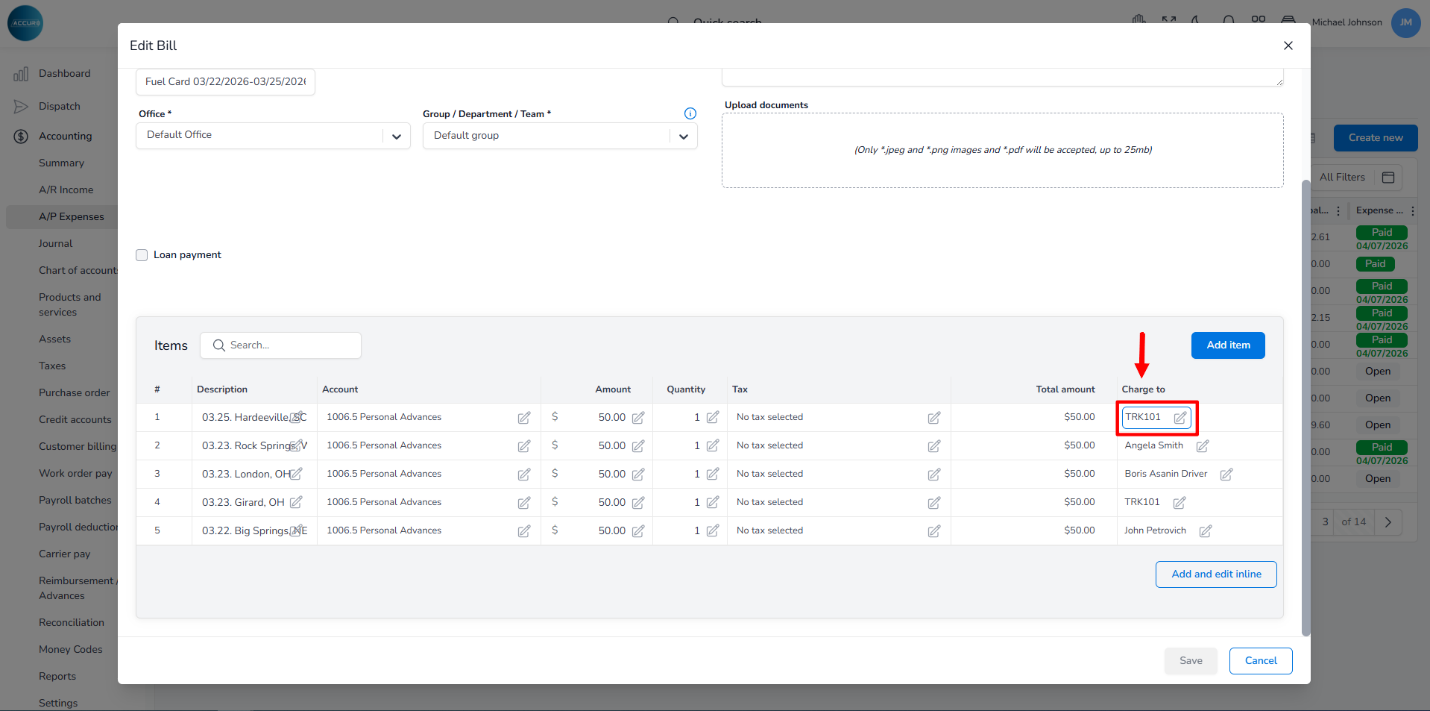
To change who pays for the fuel, click the Charge to column.
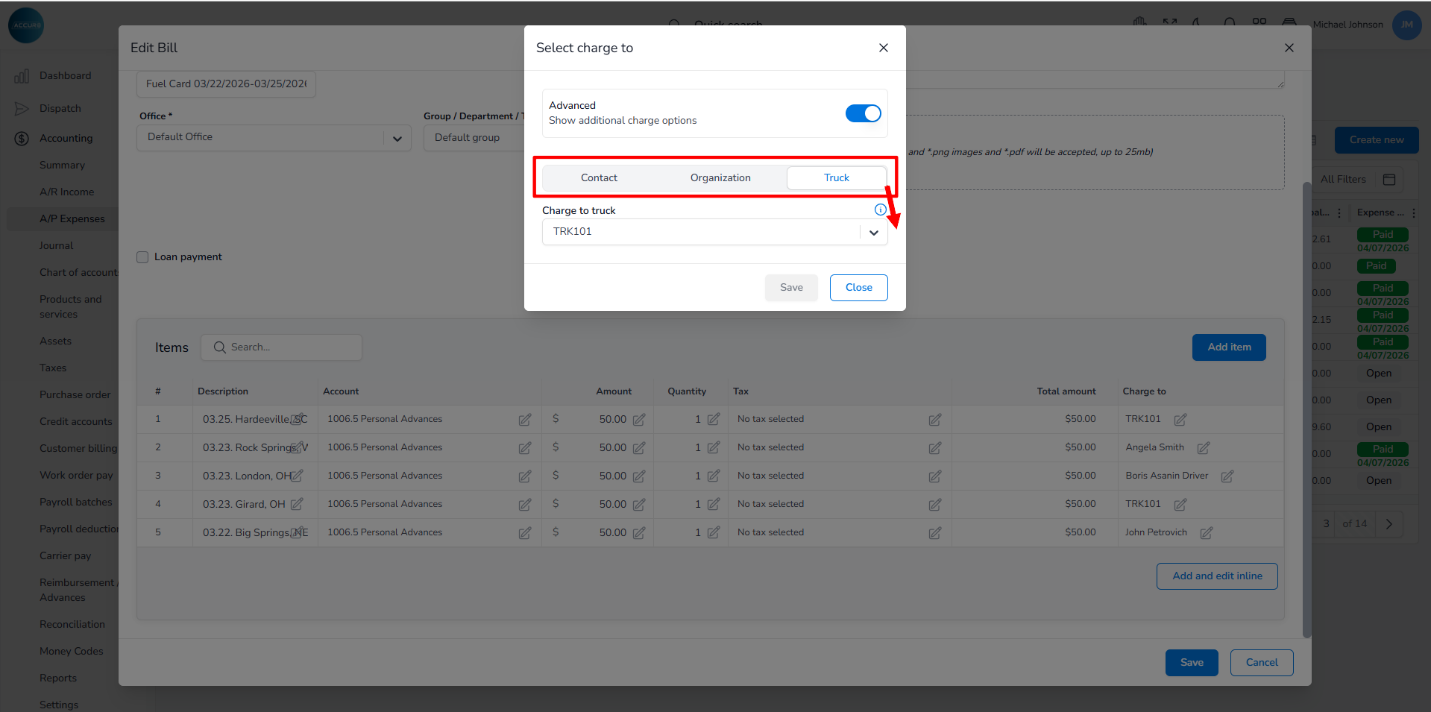
A pop-up window will appear, allowing you to select a driver, company, or truck owner responsible for the payment, and save your correction.
Finally, click the Save button to save the bill, then review the bill balance and the corresponding driver settlement or advance record to confirm the correction was applied properly.

Important: If you choose to delete and re-import a fuel file instead of manually editing the bill, make sure first to remove any existing fuel import records from the system to avoid duplicate imports.

To delete a fuel bill, go to the Items list, find the bill, hover over it, then click the Delete button.
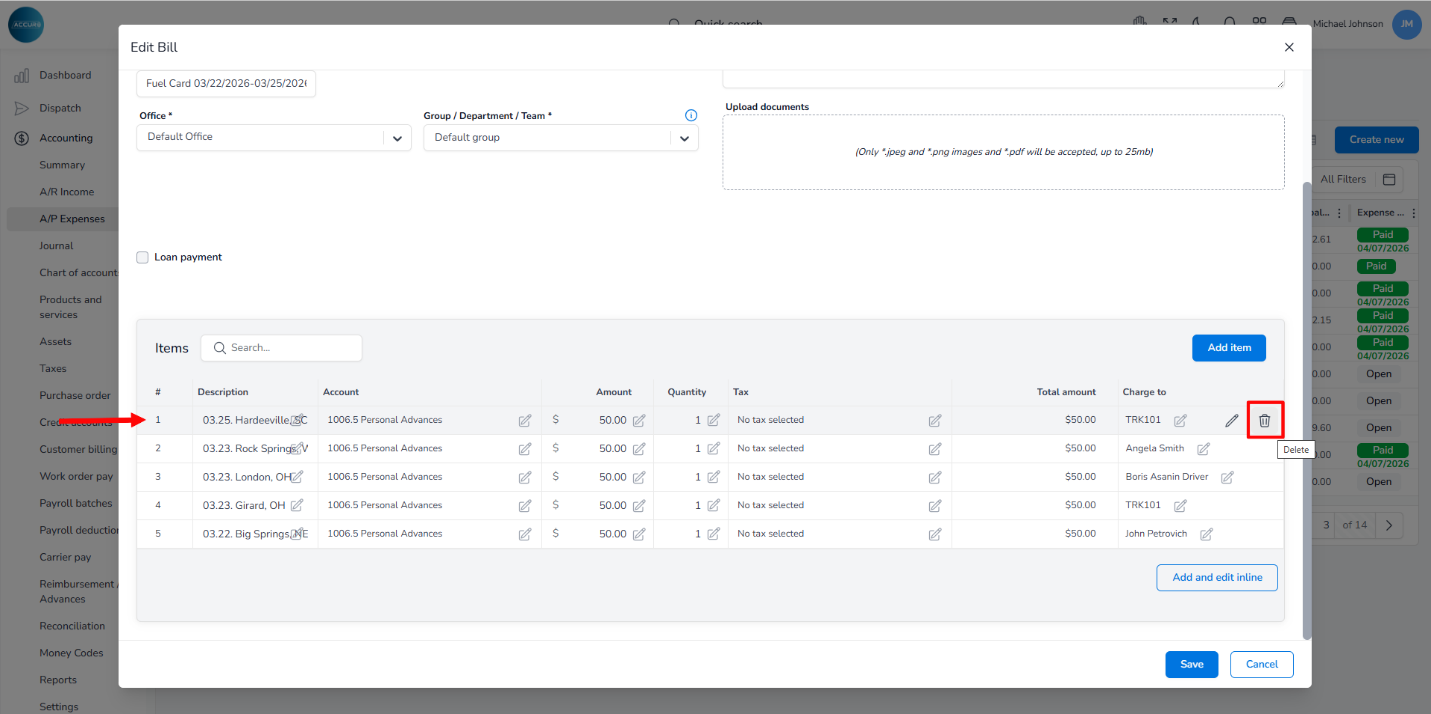
*Please note that already processed bills cannot be deleted.

Was this helpful?
Table of Contents
  • Correcting and Deleting Fuel Bills
ACCUR8 Platform Knowledge Base

AI driven Knowledge Base

All rights reserved