
How importing transponders works #
Before importing transponder data, ensure the transponders are added to the system.
To do that, navigate to the Fleet section in the left sidebar and click the Transponders (https://tms.accur8.services/transponders). Then, click the Create new button in the upper-right corner.
A dialog box will appear in which you need to enter the required transponder information marked with an asterisk. First, enter the transponder number, and then select the transponder type from the drop-down menu. Next, indicate whether the transponder belongs to a driver or a truck owner. Depending on your selection, a new field will appear below, prompting you to select a driver or truck from the drop-down menu. After that, specify who will be assigned the expense: the company, the driver, or the truck owner. Finally, enter the assign date.
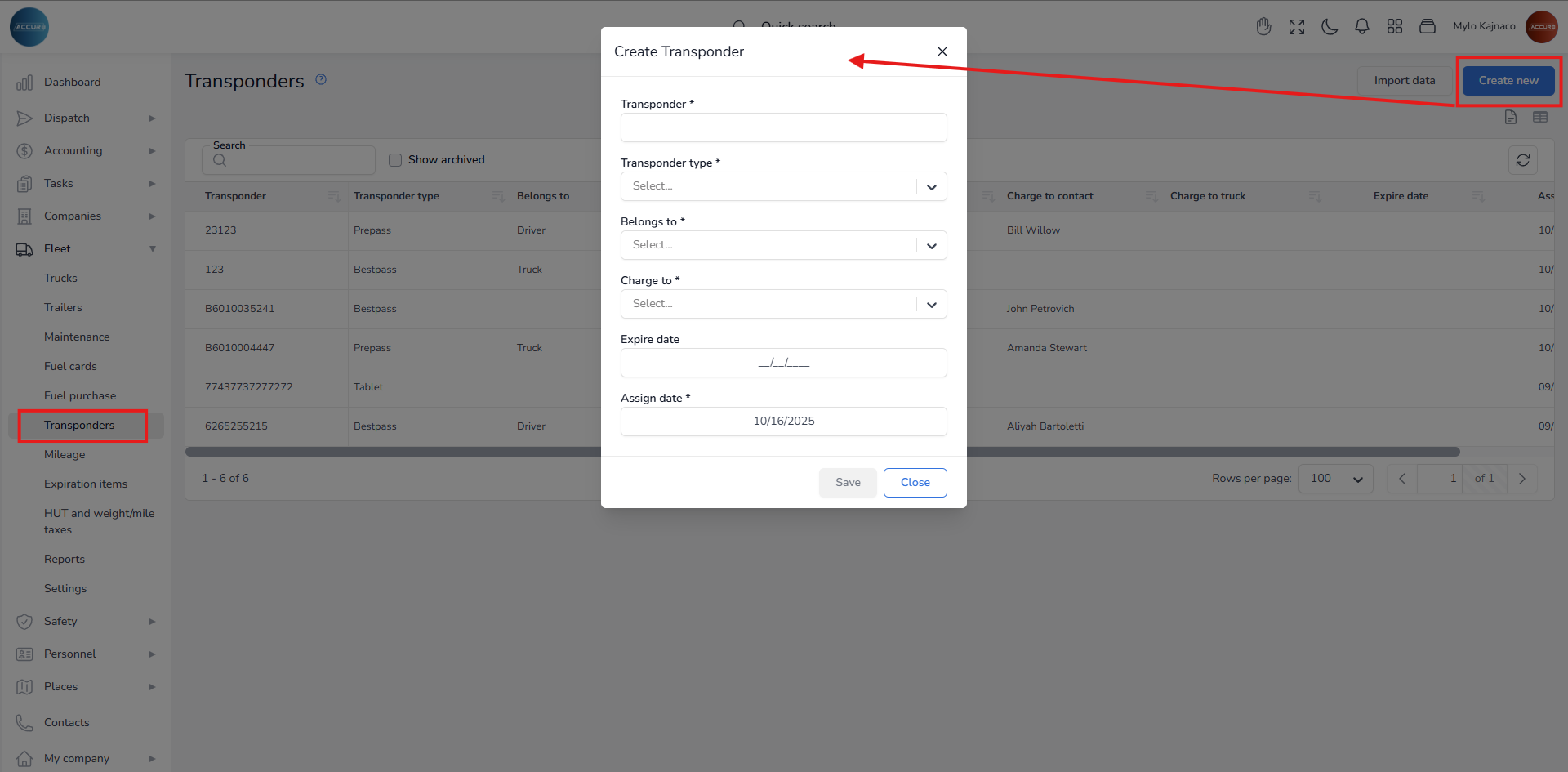
Make sure all required fields are completed before clicking the Save button.
After adding the transponders to the system, the next step is to import data from the provider. To do this, click on Import Data in the top-right corner.
A pop-up window will appear, displaying a blue notification indicating that the supported file formats are ‘.csv’ and ‘.xlsx’.
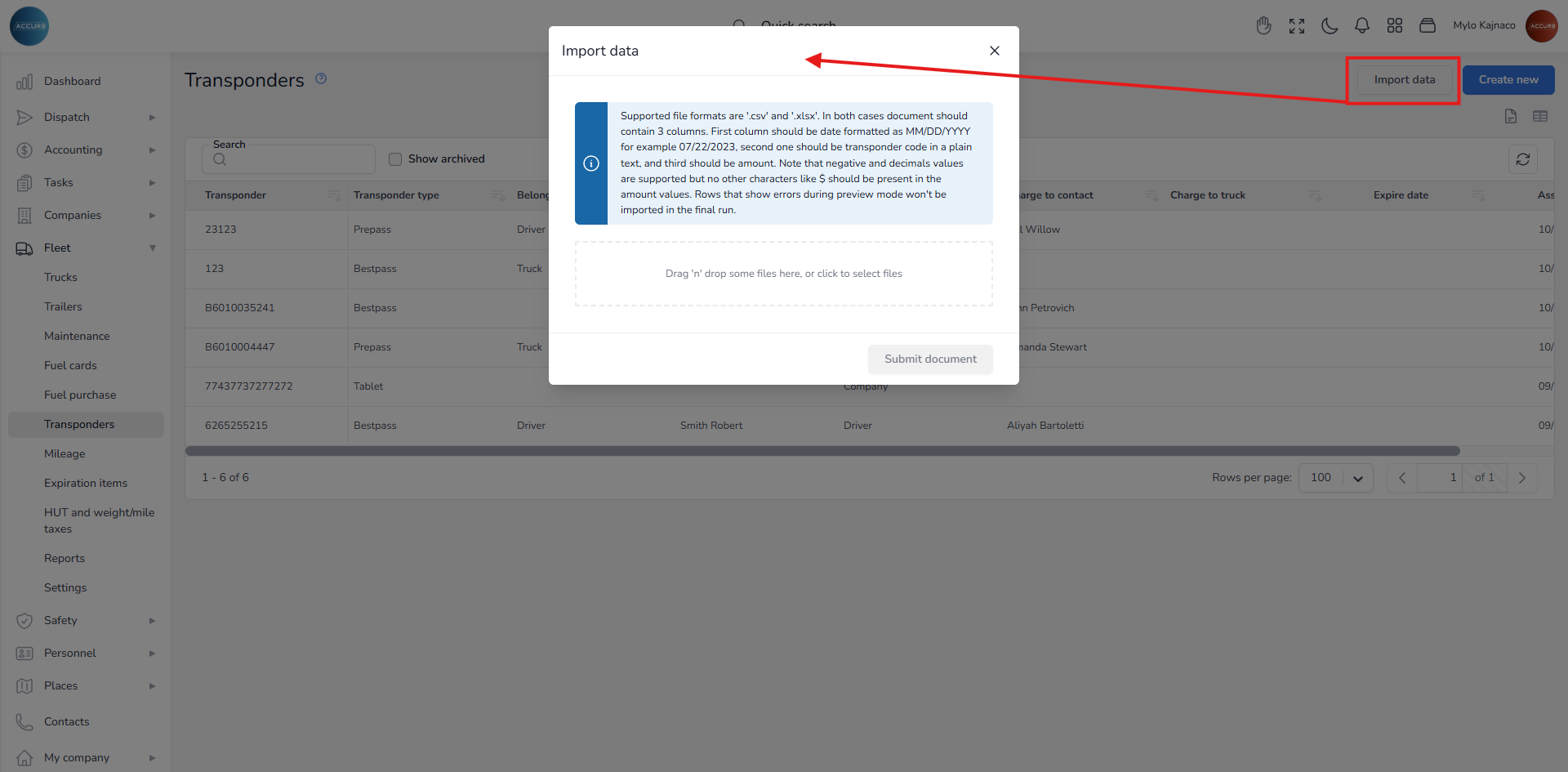
The document you upload must contain three columns:
- The first column should be formatted as MM/DD/YYYY (for example, 07/22/2023).
- The second column should contain the transponder code in plain text.
- The third column should specify the amount.
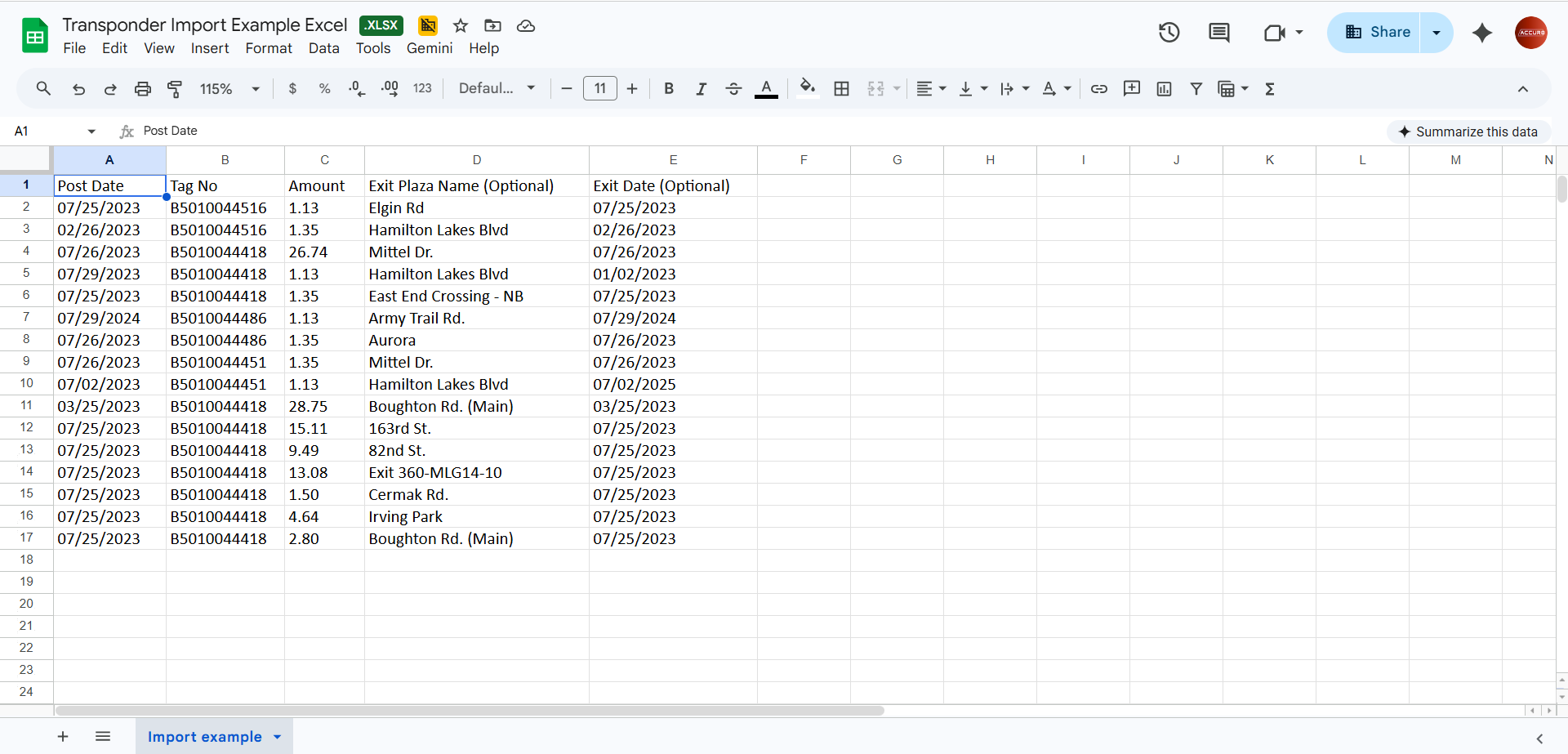
Please note that negative and decimal values are accepted in the amount column. Still, no other characters, such as the dollar sign ($), should be included. If any errors are detected during preview mode, those rows will not be imported in the final run.
After submitting the document, you can preview the data you want to import. At this stage, you need to select the Account, Advance Account, and Transponder type from the respective fields at the top of the screen.
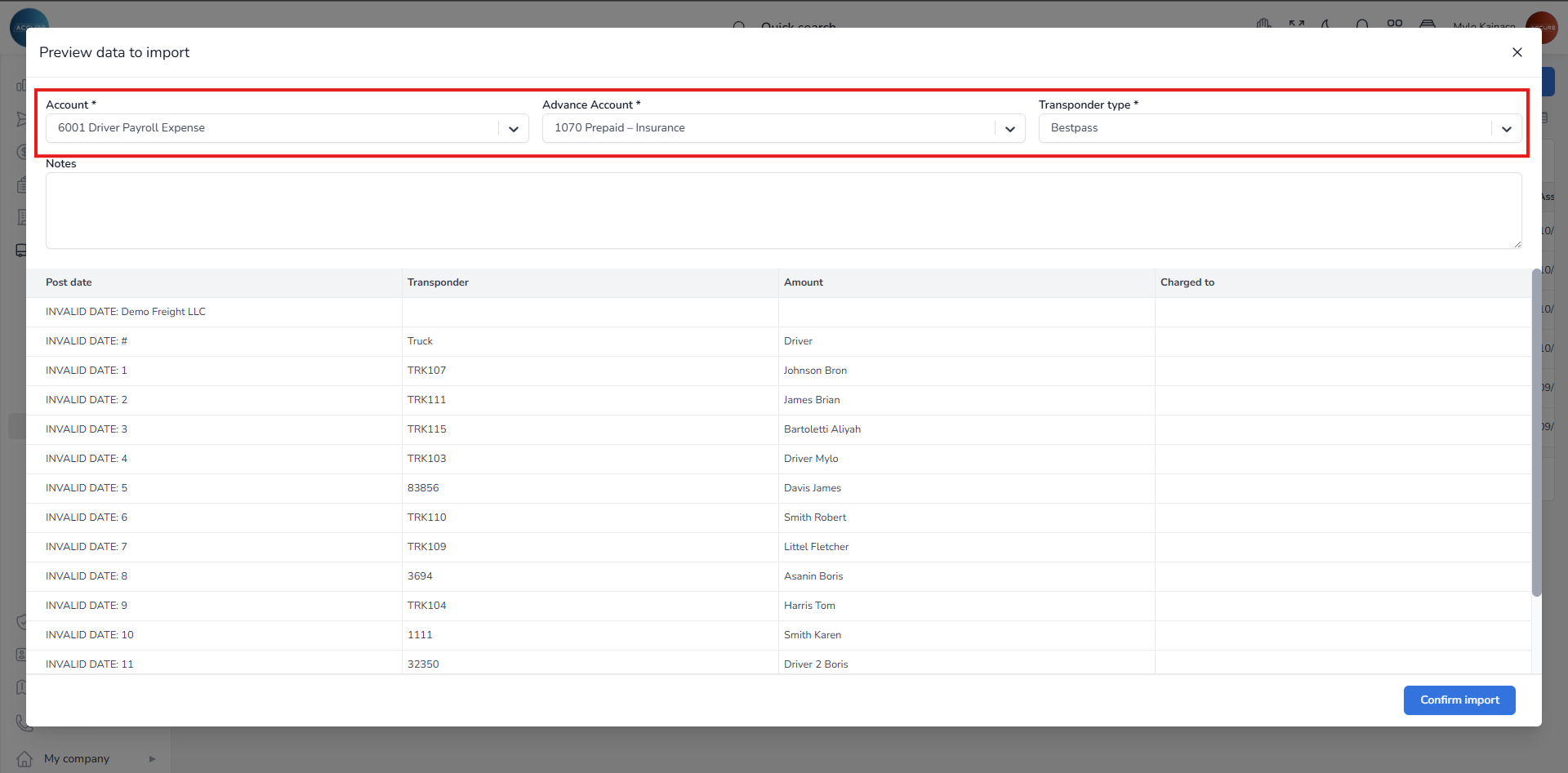
Keep in mind that nothing will be saved in the system at this point, so you can review and select accounts for posting.
Once you click the Confirm Import button, entries will be created on the following page: https://tms.accur8.services/accounting-reimbursement.
Please note that advances will only be available if you assign an expense to a driver or truck. Additionally, the import history will be recorded for future review.