
1. Introduction #
Integration with the EFS system enables the automatic retrieval and processing of fuel transaction data. This integration automates fuel cost tracking, reduces administrative burden, and improves the accuracy of financial data.
As an official EFS partner, Accur8 guarantees secure, stable, and reliable data exchange between systems, eliminating manual data entry, reducing errors, and ensuring the timely availability of relevant data.
Key benefits of this integration:
- Automated fuel transaction entry
- Linking costs to specific drivers and trucks
- Improved control and optimization of fuel costs
- Tracking and recording of transactions made via the Money Code option
The integration also includes recording and tracking of costs incurred using the EFS Money Code option, which provides greater flexibility in situations where drivers do not have a physical card or when one-time payments need to be made, thus ensuring business continuity.
2. Prerequisites #
Before you begin the integration process, please ensure you have the following:
- An active EFS account
- Access to the EFS portal
- Company Admin access (required for Data sharing)
- A valid Contract ID
- A list of active Fuel cards
3. Enabling Data Sharing in EFS #
Before integrating with Accur8, you must enable the Data sharing option. To do this, log in to EFS eManager as follows:
- Go to https://www.efsllc.com
- Click Login
- Select eManager/Fleet One eManager
- Enter your User ID and Password
- Click Login
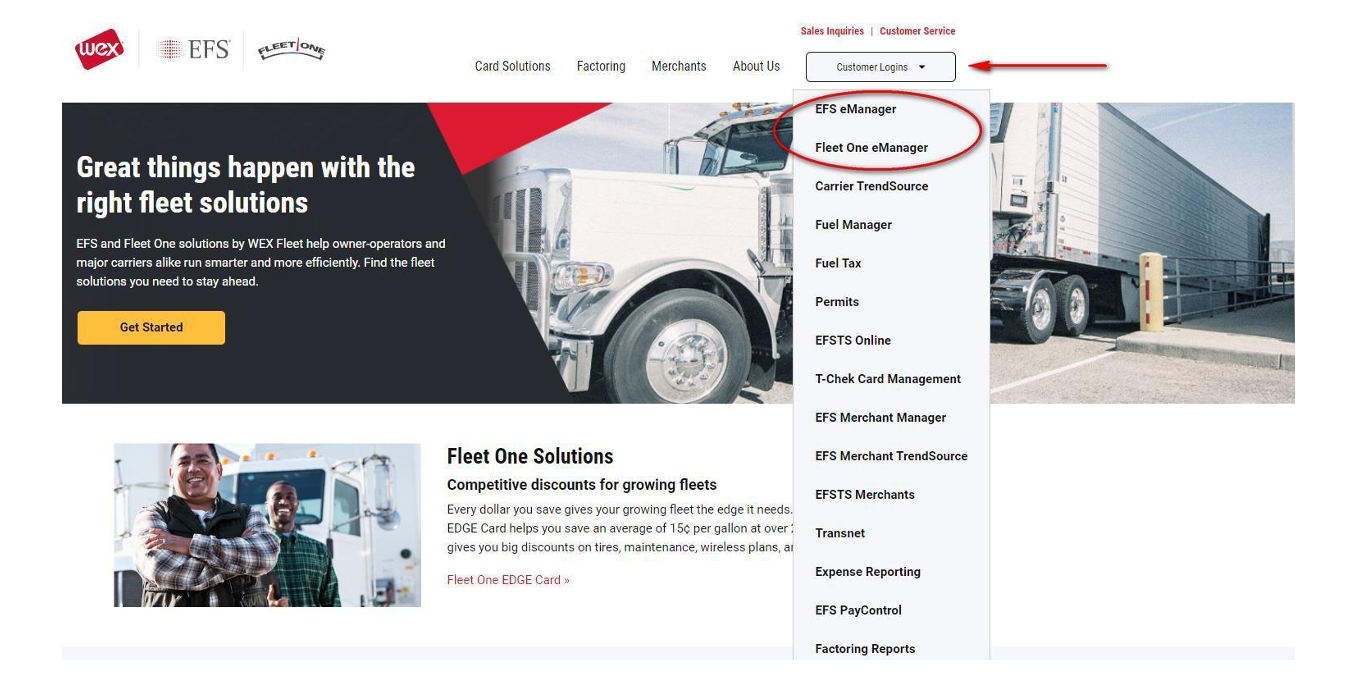
Now you need to add a partner. To do that:
- Select a partner (Accur8) from the Data Share Partner field
- Click the Add button
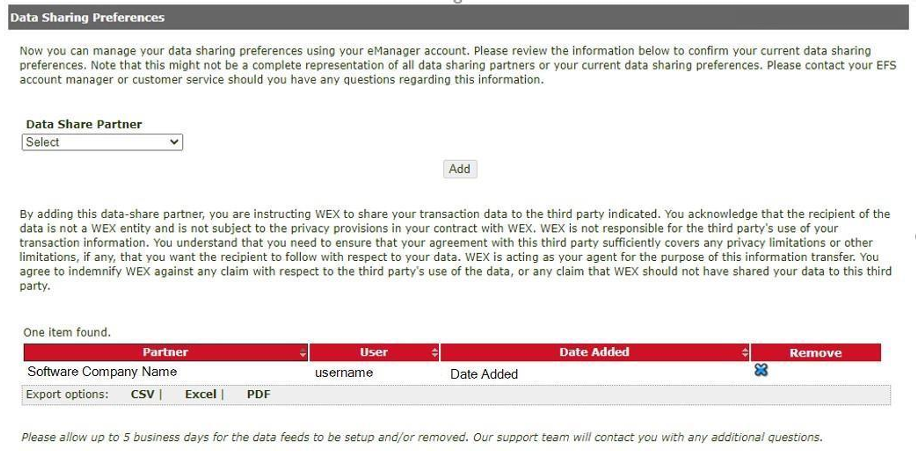
After adding a partner, it is recommended to check if Accur8 is visible in the list of active Data Sharing partners.
Important:
- Only the Company Admin can activate the Data Sharing option
- EFS can send you a confirmation email upon activation
- Activation can take up to five business days
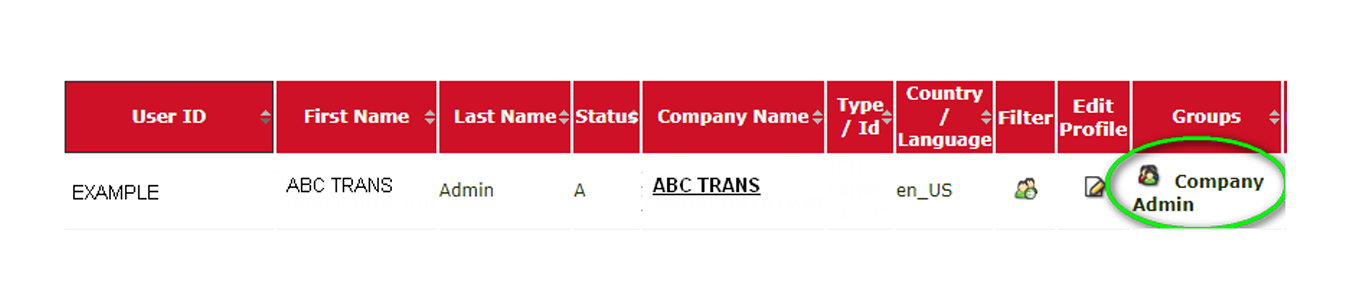
Note: The integration will not function unless the Data Sharing option is activated.
4. Retrieving the Contract ID #
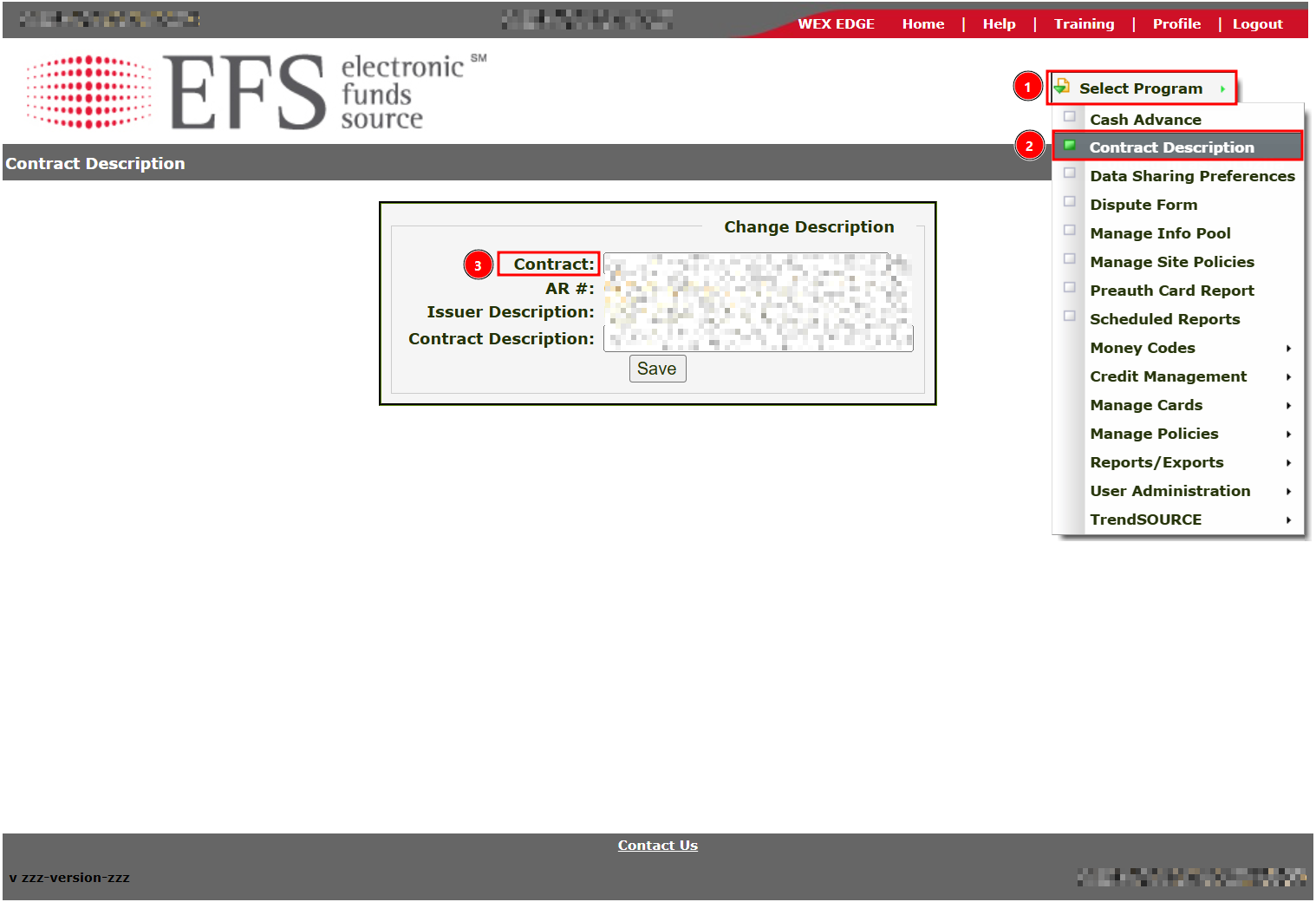
To obtain your EFS contract ID, follow the steps below:
- Log in to the EFS portal
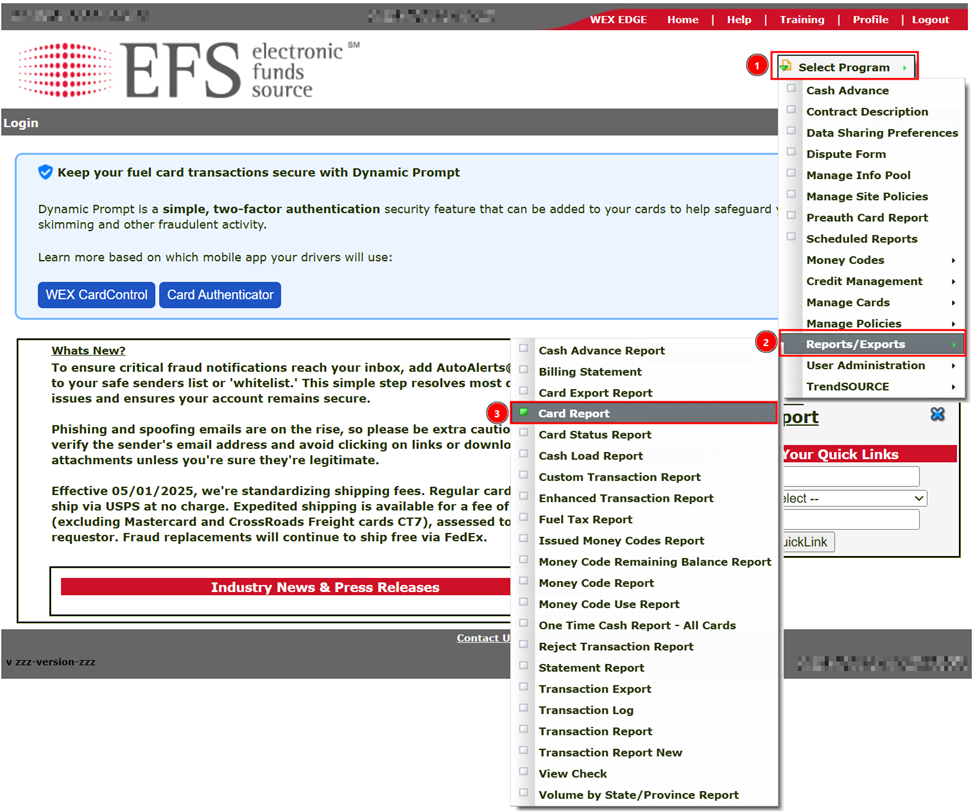
- Open the section Select Program → choose Contract Description
- Find your Contract ID
5. Downloading the EFS Reports #
- Log in to the EFS portal
- Open the Reports section
- Select Card Report
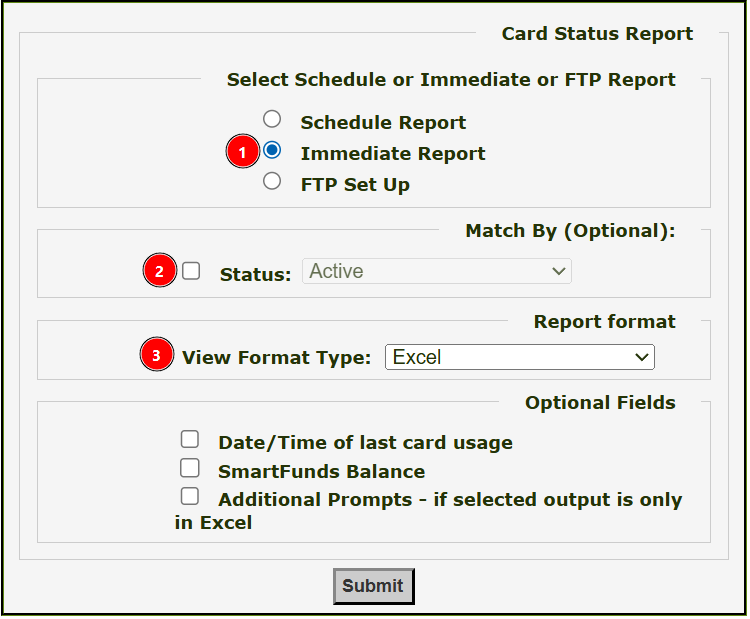
In the Card Status Report window, select the following options:
- Report Type: Immediate Report
- Status: Active
- View Format Type: Excel
After that, click the Submit button, and the system will generate an Excel report that you can download.
Note: Please make sure the list contains all active cards in use so all transactions are mapped correctly in the Accur8.
6. Connecting EFS Integration to Accur8 System #
To connect EFS to Accur8:
1. Click the User profile icon in the upper-right corner
2. Select Integrations from the drop-down menu
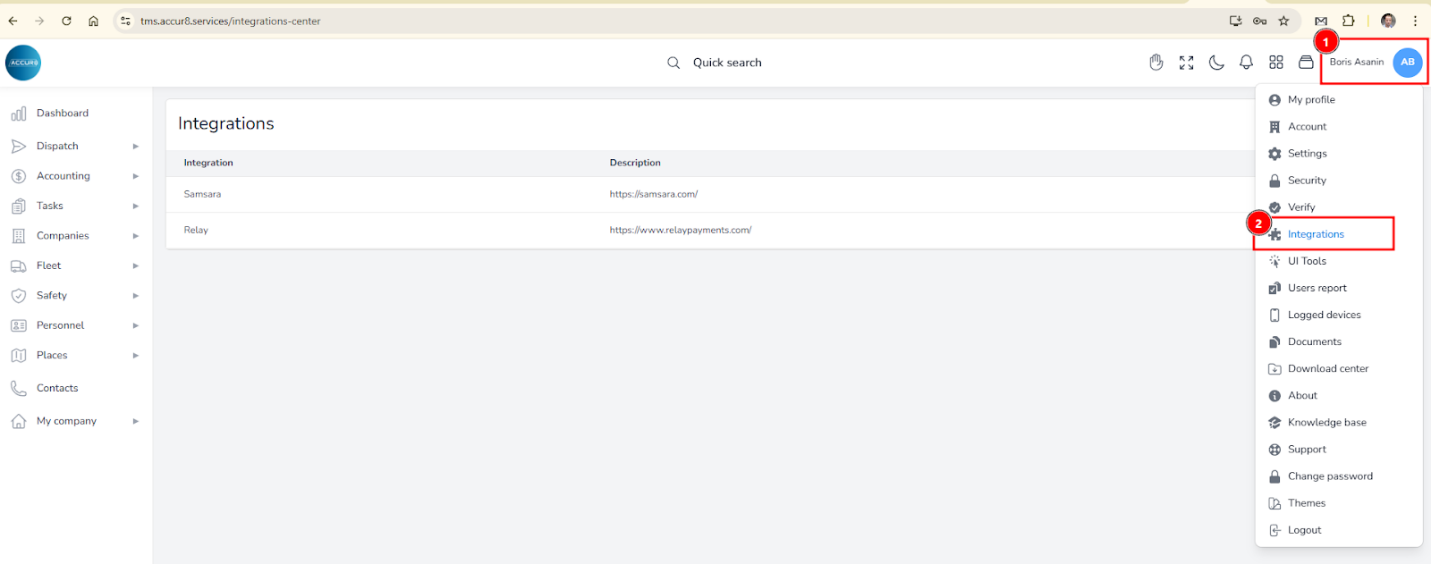
3. On the Integrations page, click Create new in the upper-right corner
4. In the dialog box, select the EFS option from the drop-down menu
5. Enter the Username, Password, and Contract ID in the fields below
6. Click the Save button to save the entry
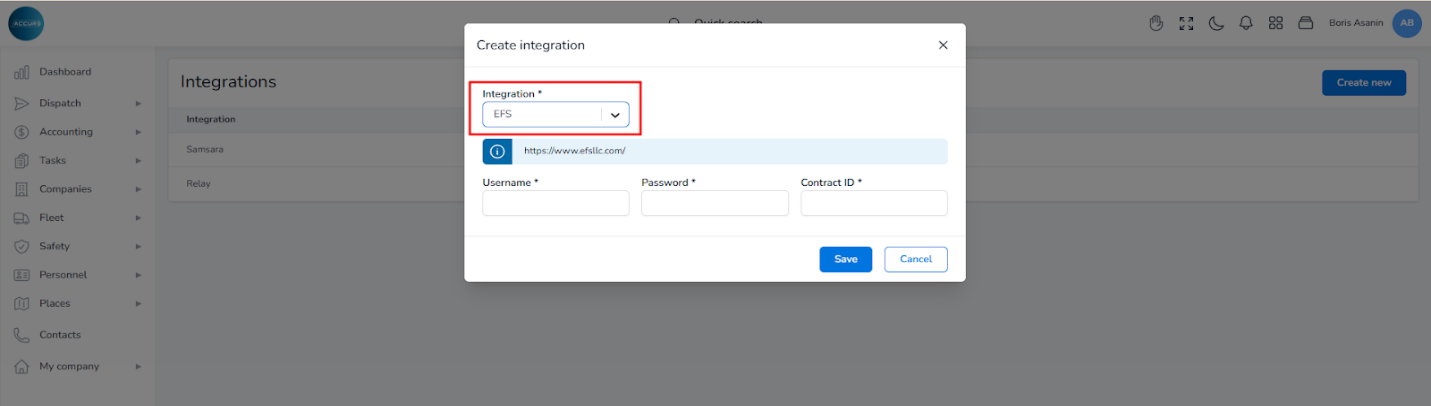
Note: Verify if the connection was successful; if so, the integration will be listed without any errors or warnings.
7. Adding Fuel Cards to Accur8 #
To import fuel cards into the system:
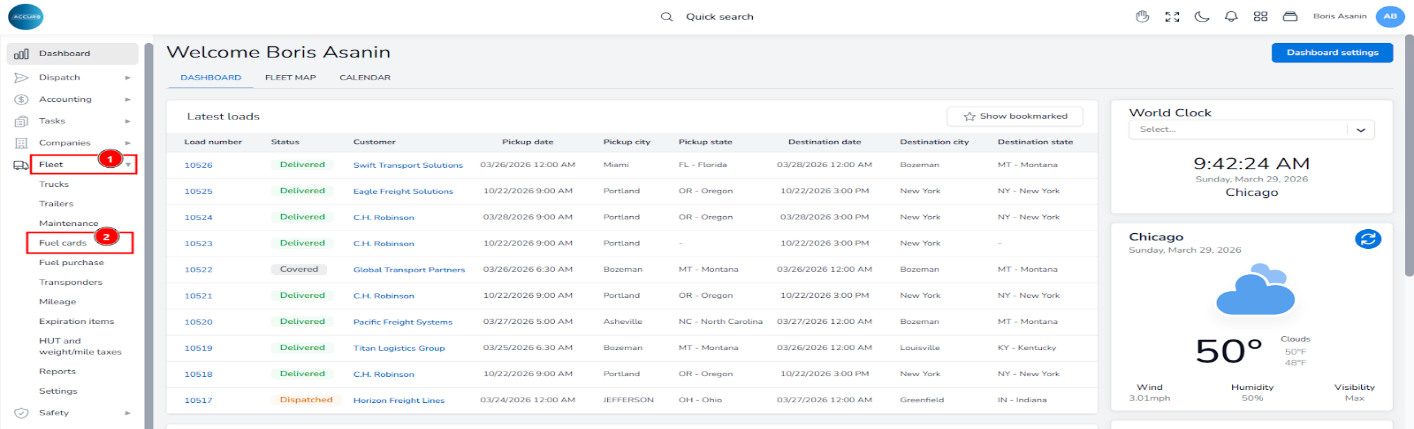
1. In the left sidebar menu, select the Fleet section
2. Click Fuel Cards
3. On the Fuel Cards page, click Create New in the upper-right corner
4. In the pop-up window that appears, enter the following:
- Fuel Card Number: The card number from EFS
- Driver: Select it from the drop-down menu
- Truck: Select the corresponding truck
- Assign expenses: Choose whether the expense will be assigned to a driver or a truck owner
- Integration: Select
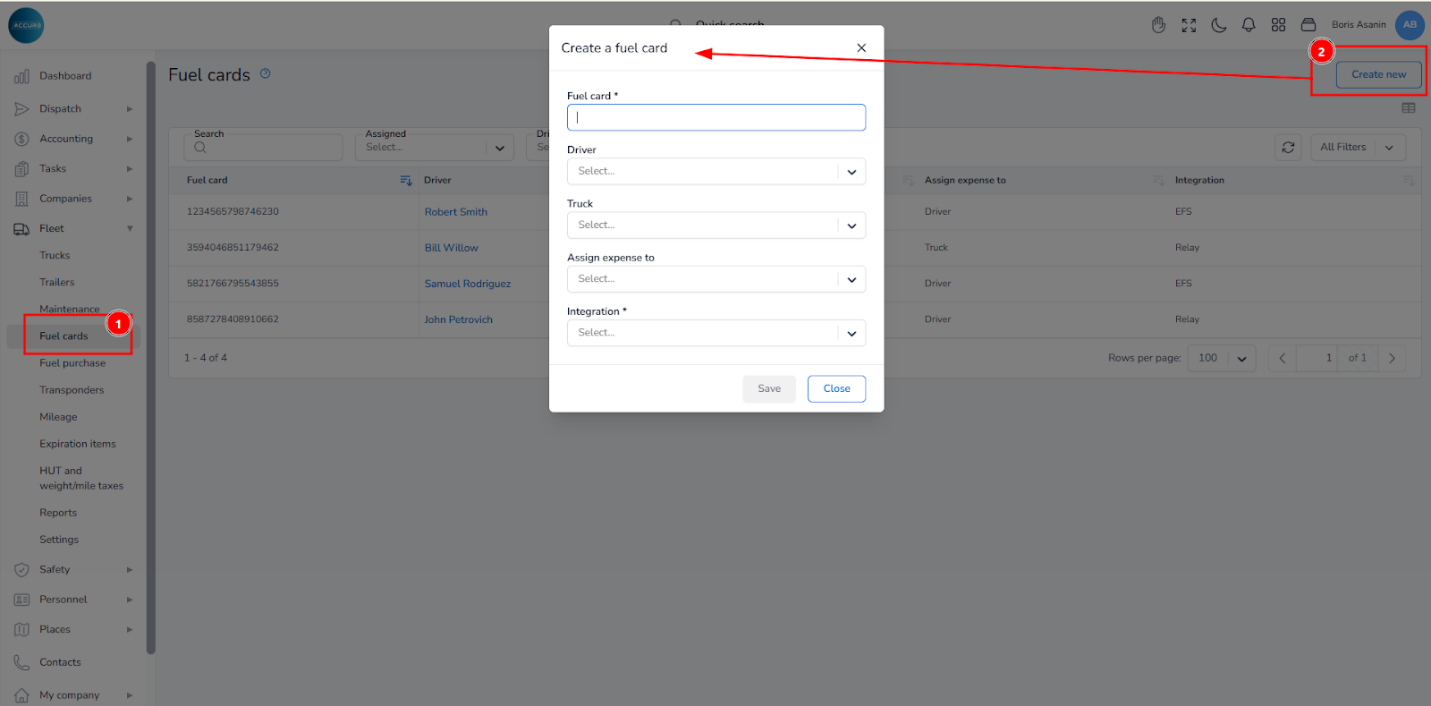
To ensure accurate mapping and recording of transactions, each card must be uniquely linked to its corresponding driver or truck. Otherwise, transactions will be imported without an assigned vehicle or driver.
8. Troubleshooting #
Transactions Not Appearing
If transactions are not appearing, check the following:
- Data Sharing settings
- Contract ID
- Fuel cards
Duplicate Transactions
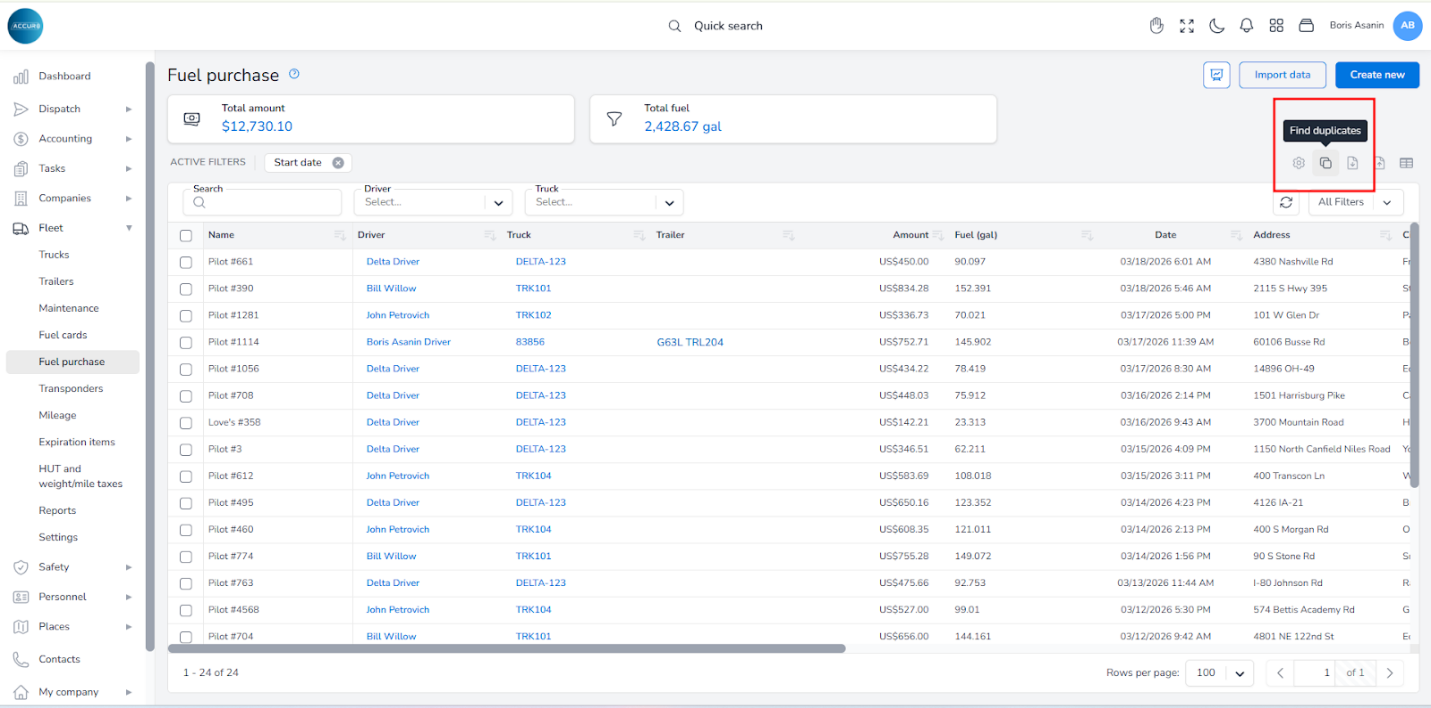
To avoid duplicate transactions, do not re-import the same file. However, if duplicates occur, Accur8 can identify them using the Find duplicates option on the Fuel Purchase page.
9. Verifying Integration #
After setting up the integration, perform the following checks to ensure it functions correctly:
- Verify that transactions have been successfully imported into the system
- Verify that transactions are linked to the appropriate trucks
- Verify the accuracy of transaction amounts and dates
- Check the integration for errors or warnings
If all the above checks are successful, the integration is set up properly and ready for use.